
Android guide · By the KeepSift team
How to search text inside screenshots on Android
You remember the hotel name, but not when you saved the booking confirmation. Search the words inside your screenshots to find it again.
KeepSift is our Android app for this job. It recognizes screenshot text on your device and lets you search the words it has found.
1. Let KeepSift index your screenshots
Open KeepSift and follow its setup instructions to allow access to the screenshots you want to search. Let the initial scan finish. A screenshot that has not been indexed will not be searchable yet.
Choose a recognition profile that matches the writing in your screenshots. The Recommended profile uses your app language or device locale; it does not detect the language of every image.
2. Search a word you remember
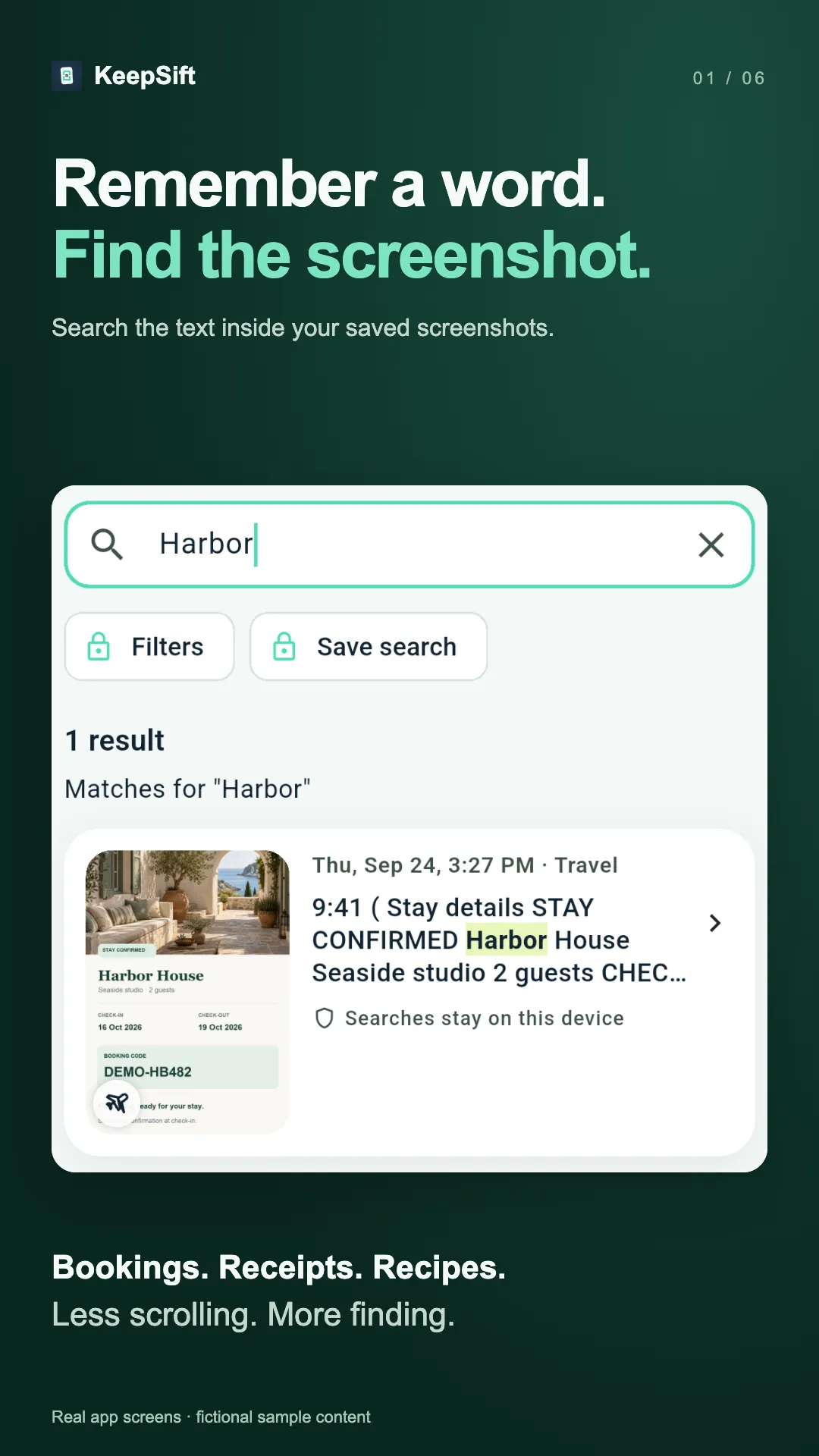
Try a distinctive word: a hotel name, shop name, ingredient, or phrase from a note. In this fictional booking example, searching “Harbor” finds the confirmation containing that name.
3. Open the matching screenshot
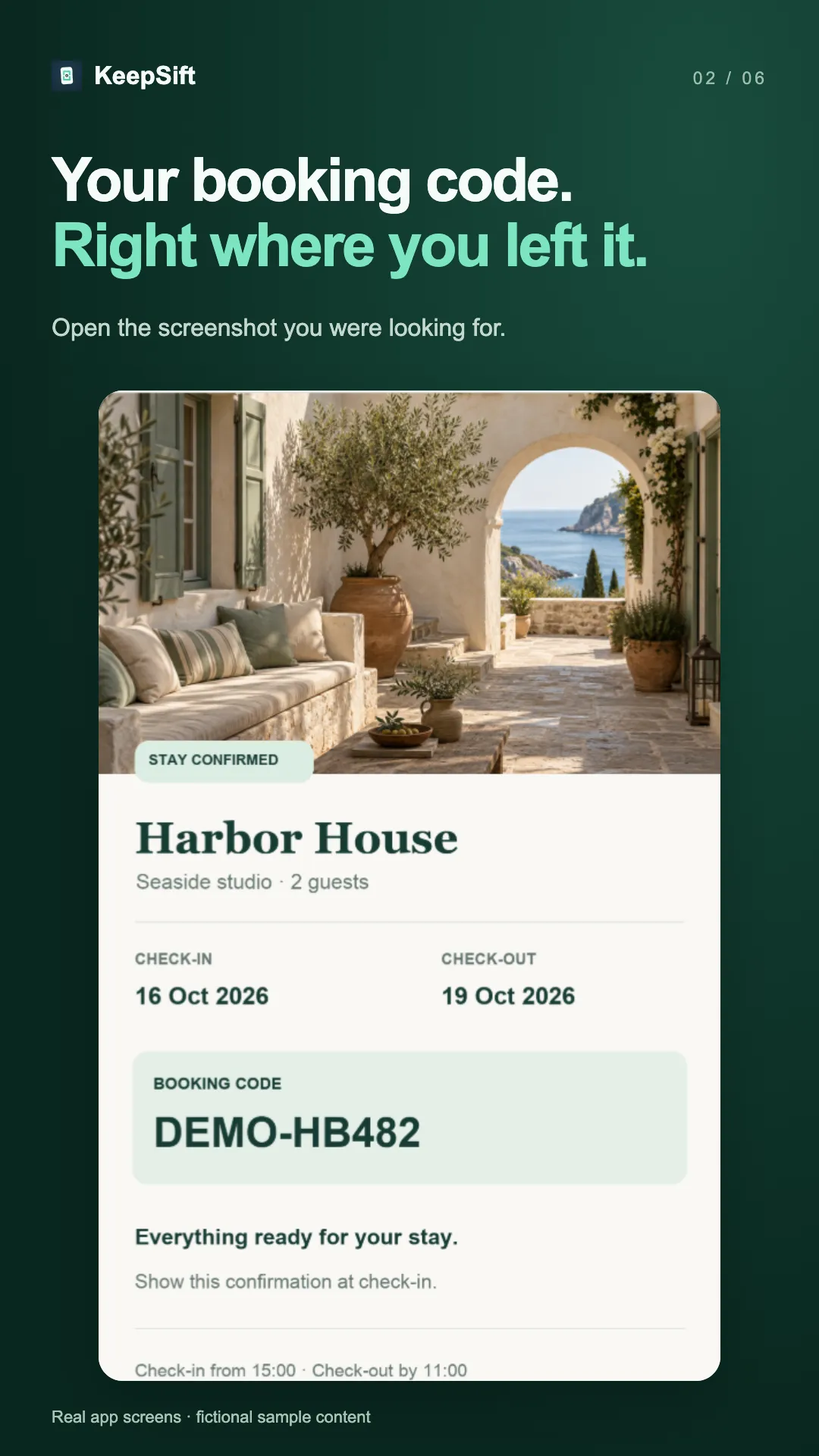
Open the result to check the original image and read the booking details. You can also copy detected text. Check important codes against the image before using them: text recognition can make mistakes.
What if a screenshot does not appear?
Check that KeepSift can access the screenshot and that indexing has finished. Try a different distinctive word from the image. If the detected text is wrong, review it, re-scan with another supported profile, or edit the detected text manually.
Recognition can struggle with small, stylized, compressed, low-contrast, rotated, or mixed-language text. Supported profiles cover Latin, Chinese, Devanagari, Japanese, Korean, Armenian, Russian and Bulgarian. Greek and other unlisted writing systems are not supported in the current release.
Do my screenshots leave my phone?
KeepSift performs indexing and search on your device and does not upload your screenshots or local index. No KeepSift account is required. Sharing through another app is a separate action you choose. Your device’s photo backup settings remain under your control.
Does searching require Pro?
Core local indexing, text recognition and keyword search are included without Pro. Pro adds features such as advanced filters, saved searches and unlimited custom collections.